No-Code Onboarding Tools: Build Without Engineering
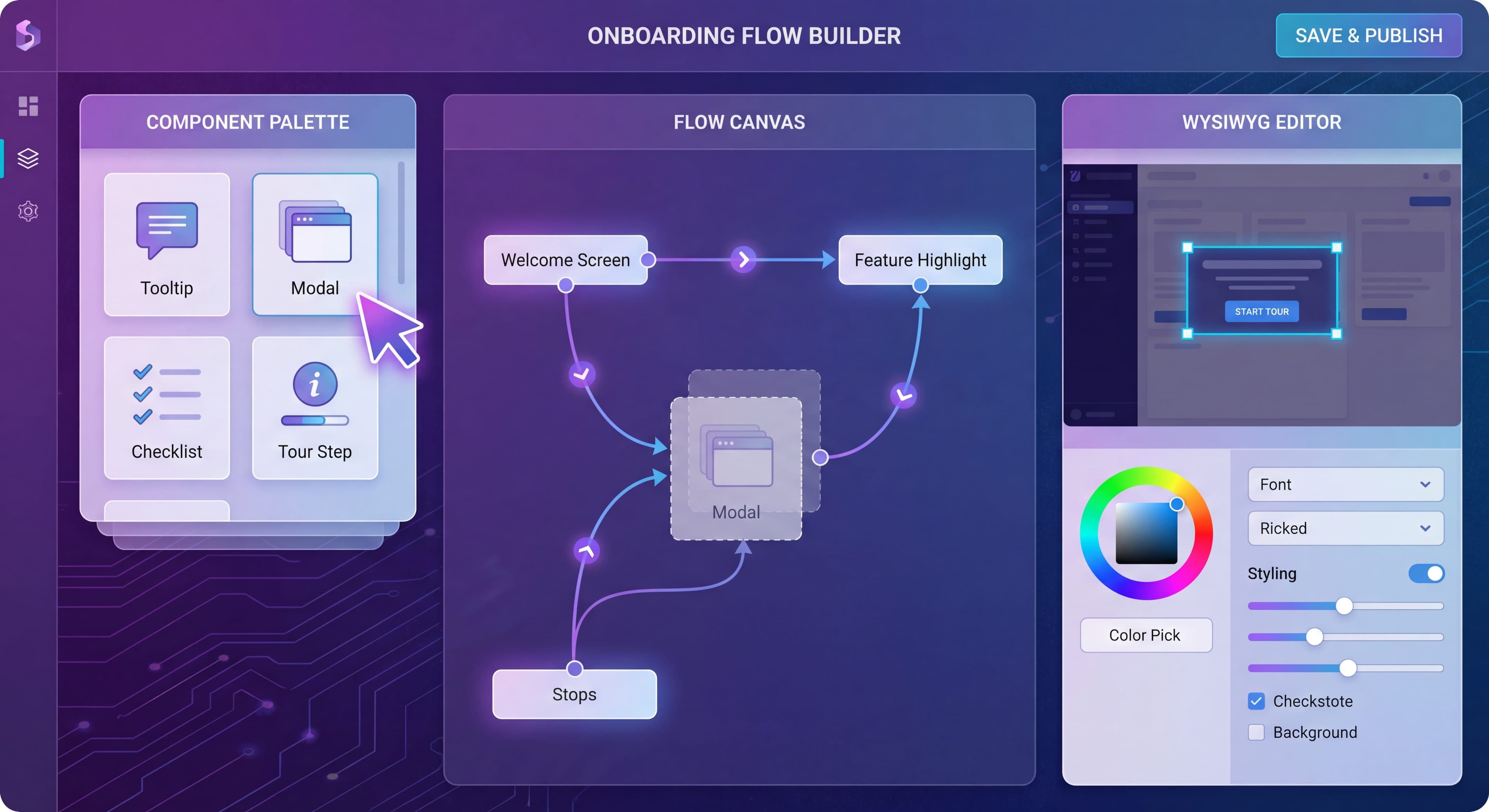

Not every onboarding improvement requires engineering. No-code onboarding tools let product managers, growth teams, and customer success build, test, and iterate on onboarding experiences without waiting for dev resources.
This guide covers what no-code tools can do, their limitations, and how to choose the right approach.
Engineering bottleneck on onboarding?
Create step-by-step guides without code that your whole team can build and update with Glitter AI.
What Are No-Code Onboarding Tools?
No-code onboarding tools have changed how product teams build and deploy user guidance. These platforms let non-technical users, product managers, growth marketers, customer success professionals, create in-app guidance, no-code product tours, checklists, and other onboarding elements without writing any code. This removes the traditional bottleneck where every tooltip change required engineering tickets, sprint planning, and deployment cycles. Teams can now ideate, build, test, and iterate on onboarding experiences in hours rather than weeks.
The shift to no-code tools isn't just about speed. It transforms who can contribute to onboarding improvement. Product managers who understand user pain points can now implement solutions directly instead of translating requirements through engineering tickets that get deprioritized. Customer success teams who hear support questions about confusing workflows can create guidance addressing those exact pain points. Growth teams can run rapid experiments without consuming engineering capacity. This often reveals that the people best positioned to improve onboarding, those closest to user feedback and frustration, are rarely the engineers writing code.
How They Work
Browser extension builders are the main interface for non-technical users. These extensions, usually for Chrome or Firefox, let you open your actual product and design flows directly on the real UI rather than in abstract configuration screens. This WYSIWYG approach means you see exactly how your tour will look while building it, reducing the gap between design intention and reality. You're not imagining how a tooltip might appear next to a button. You're positioning that tooltip on the actual button and seeing the result.
Element selection mechanisms translate complex CSS selectors into point-and-click simplicity. Instead of writing selectors like div.container > button.primary[data-action="create"], you click the button and the tool generates the selector automatically. Most platforms offer multiple selection methods: visual point-and-click for simple cases, CSS selector writing for complex scenarios, and sometimes AI-powered element detection. This flexibility keeps both simple and complex targeting accessible to non-technical users while providing escape hatches for edge cases.
Visual editors handle content creation and styling through familiar interfaces that feel more like word processors than development tools. You write headlines and body copy in rich text editors with formatting, images, videos, and links. Color pickers let you match your brand palette without knowing hex codes. Layout controls offer drag-and-drop positioning. These editors hide technical complexity while still giving you enough control to create polished onboarding experiences that fit your product's design.
Targeting rules transform conditional logic into visual rule builders. Instead of writing if-statements, you build rules through dropdown menus: "Show this tour when user plan equals 'trial' AND user has NOT completed 'first_project_created' AND signup date is less than 7 days ago." These builders support sophisticated targeting, combining user properties, behavioral events, page conditions, and timing constraints, without requiring any programming knowledge.
What You Can Build
Product Tours:
Step-by-step guided walkthroughs.
Tooltips and Hotspots:
Contextual hints on specific elements.
Checklists:
Task lists with progress tracking.
Modals and Banners:
Announcements and prompts.
Resource Centers:
In-app help hubs.
Surveys:
NPS, CSAT, and custom questions.
No-Code Tool Capabilities
Building Experiences
Element Targeting:
- CSS selector based
- Visual point-and-click
- Dynamic element support
Content Creation:
- Rich text editing
- Image and video embedding
- Custom HTML (in some tools)
Styling:
- Pre-built themes
- Custom colors and fonts
- Advanced CSS (in some tools)
Flow Logic:
- Step sequencing
- Branching based on conditions
- Conditional step display
Targeting and Segmentation
User Attributes:
- Plan type
- Role
- Sign-up date
- Custom properties
Behavioral Triggers:
- Page visits
- Element interactions
- Feature usage
- Time-based
Segment Creation:
- Combine multiple conditions
- Include/exclude logic
- Dynamic segments
Integration
Analytics Platforms:
- Amplitude, Mixpanel, Segment
- Event tracking
- User identification
CRM and Support:
- Salesforce, HubSpot
- Intercom, Zendesk
Data Sources:
- User properties sync
- Real-time data
Top No-Code Onboarding Tools
Appcues
Strengths:
- Pioneer, mature product
- Strong design capabilities
- Mobile support (iOS, Android, React Native)
- Robust integrations
Limitations:
- Segment limits on lower tiers
- No resource center
- A/B testing on higher tiers only
Best For:
Mobile products, teams needing polished design.
Userpilot
Strengths:
- Excellent analytics built-in
- Resource center included
- Unlimited segments
- Strong targeting
Limitations:
- No mobile support
- Steeper learning curve
- No free tier
Best For:
Web products wanting analytics + onboarding together.
UserGuiding
Strengths:
- Best value pricing ($89/month start)
- Knowledge base included
- Excellent customer support
- Good feature set
Limitations:
- No mobile support
- Smaller company
- Some advanced features limited
Best For:
Startups and budget-conscious teams.
Chameleon
Strengths:
- Maximum design customization
- Premium animations
- Deep targeting
- Developer-friendly
Limitations:
- No mobile support
- CSS knowledge helpful
- Steeper learning curve
Best For:
Design-conscious teams with CSS resources.
Pendo
Strengths:
- Best-in-class analytics
- Full product analytics platform
- Mobile support
- Free tier available
Limitations:
- Guide builder less intuitive
- Expensive at scale
- Complexity can be overwhelming
Best For:
Data-driven teams prioritizing analytics.
Product Fruits
Strengths:
- AI-assisted content creation
- Knowledge base included
- Competitive pricing
- Good overall feature set
Limitations:
- No mobile support
- Requires sales call for pricing
- Smaller market presence
Best For:
Teams wanting AI features and knowledge base.
Userflow
Strengths:
- Fastest builder experience
- AI-powered Smartflow
- Clean, intuitive UX
- Resource center included
Limitations:
- No mobile support
- Less advanced analytics
- Newer to market
Best For:
Teams prioritizing build speed and ease of use.
Building with No-Code Tools
Non-technical team owns onboarding?
Create step-by-step guides that anyone can build without waiting for dev resources with Glitter AI.
Getting Started
Step 1: Install
Add JavaScript snippet to your application.
Step 2: Identify Users
Pass user properties for targeting.
Step 3: Build
Use visual builder to create flows.
Step 4: Target
Configure who sees what.
Step 5: Publish
Go live with your flows.
Building a Product Tour
In Most Tools:
- Open builder on your product page
- Click "New Tour" or equivalent
- Select first element to highlight
- Add content (title, description)
- Add next step
- Repeat until tour complete
- Set targeting rules
- Publish
Time to Build:
Simple tour: 15-30 minutes
Complex tour: 1-2 hours
Building a Checklist
Typical Process:
- Create new checklist
- Add items
- Link items to pages or tours
- Configure completion triggers
- Set appearance and position
- Target to appropriate users
- Publish
Common Building Tasks
| Task | Difficulty | Time |
|---|---|---|
| Simple tooltip | Easy | 5 min |
| 5-step tour | Easy | 30 min |
| Onboarding checklist | Medium | 1 hour |
| Targeted announcement | Easy | 15 min |
| Resource center | Medium | 2-3 hours |
| Complex branching flow | Hard | 2-4 hours |
No-Code Limitations
Knowledge stuck in silos?
Create step-by-step guides that share expertise across your entire team with Glitter AI.
What Requires Code
Deep Product Integration:
- Custom data triggers
- Complex conditional logic
- Real-time state awareness
Advanced Customization:
- Completely custom UI components
- Complex animations
- Unique interaction patterns
Performance Critical:
- High-frequency interactions
- Large-scale deployments
- Complex calculations
Element Selection Challenges
Dynamic Content:
Elements that change or load asynchronously.
Complex Applications:
Single-page apps with virtual DOM.
Iframes:
Content in iframes may not be targetable.
Third-Party Widgets:
External components may resist targeting.
Workarounds
Most Tools Offer:
- Multiple selector methods
- Fallback options
- Custom CSS selectors
- Support for complex cases
No-Code vs. Custom Build
When No-Code Works
Good Candidates:
- Standard onboarding patterns
- Product tours and tooltips
- Checklists and modals
- Announcements and banners
- NPS/survey collection
Team Situations:
- Limited engineering resources
- Need to iterate quickly
- Non-technical team owns onboarding
- Testing before building custom
When Custom Makes Sense
Custom Indicators:
- Highly unique interaction patterns
- Deep product integration needed
- Performance is critical
- Already have UI component library
- Need complete control
Hybrid Approach:
Use no-code for most things, build custom for specific needs.
Cost Comparison
No-Code:
- Tool cost: $1K-30K/year
- Implementation: Days
- Maintenance: Low
- Iteration: Fast
Custom Build:
- Development cost: $10K-100K+
- Implementation: Weeks/Months
- Maintenance: Ongoing
- Iteration: Requires dev time
Decision Framework
Choose No-Code If:
- Standard patterns work
- Quick iteration important
- Engineering constrained
- Testing approaches
Choose Custom If:
- Unique requirements
- Performance critical
- Already built component library
- Deep integration needed
Knowledge stuck in silos?
Create step-by-step guides that share expertise across your entire team with Glitter AI.
Best Practices
Building Effective Flows
Start Simple:
Begin with basic tours, add complexity over time.
Test on Real Product:
Always test in actual environment.
Consider Edge Cases:
What if element doesn't load? Different screen sizes?
Iterate Based on Data:
Use analytics to improve.
Targeting Strategy
Start Broad, Then Narrow:
Begin with wider audience, refine based on data.
Segment Thoughtfully:
Don't over-segment too early.
Test Targeting:
Verify flows show to right users.
Maintenance
Regular Audits:
UI changes may break flows.
Update Process:
Review flows after product updates.
Version Control:
Track what changed and when.
Team Workflow
Who Should Own No-Code Onboarding?
Product Team:
Onboarding tied to product experience.
Growth Team:
Conversion and activation focused.
Customer Success:
User education and feature adoption.
Best Practice:
Clear ownership with cross-functional input.
Collaboration Model
Product/Design:
- Define requirements
- Review designs
- Approve flows
Growth/Success:
- Build flows
- Run experiments
- Analyze results
Engineering:
- Technical integration
- Complex customization
- Performance monitoring
Common Mistakes
Mistake 1: Over-Building
Problem: Creating too many flows.
Result: User fatigue, maintenance burden.
Fix: Start minimal, add based on data.
Mistake 2: Ignoring Mobile
Problem: Building for desktop only.
Result: Poor mobile experience.
Fix: Test mobile, use responsive tools.
Mistake 3: Set and Forget
Problem: Building flows, never updating.
Result: Outdated, broken flows.
Fix: Regular review and maintenance.
Mistake 4: No Measurement
Problem: Building without tracking.
Result: Can't improve.
Fix: Set up analytics from start.
The Bottom Line
No-code onboarding tools let more people build professional onboarding experiences. They're not perfect for every situation, but they're good enough for most, and they enable rapid iteration that custom development can't match.
Key Principles:
- Start with no-code for most needs
- Understand the limitations
- Build custom only when necessary
- Iterate based on data
- Maintain what you build
The best tool is the one your team will actually use to keep improving DIY onboarding experiences.
Continue learning: Choosing a DAP and Implementing Your First Tour.
Frequently Asked Questions
What can I build with no-code onboarding tools?
No-code onboarding tools enable you to create product tours (step-by-step walkthroughs), tooltips and hotspots (contextual hints), checklists (task lists with progress tracking), modals and banners (announcements), resource centers (in-app help hubs), and surveys (NPS, CSAT). Most tools use browser extension builders with point-and-click element selection.
What are the best no-code onboarding tools for SaaS products?
Top options include Appcues (best for mobile with iOS/Android SDKs), Userpilot (excellent analytics with resource center), UserGuiding (best value at $89/month), Chameleon (maximum design customization), Pendo (best analytics with free tier), and Userflow (fastest builder with AI features). Choose based on your platform needs and budget.
When should I use no-code tools versus building custom onboarding?
Use no-code tools for standard patterns, quick iteration needs, limited engineering resources, or when testing approaches before custom development. Build custom when you have highly unique interaction patterns, need deep product integration, require critical performance optimization, or already have a UI component library to leverage.
How long does it take to build onboarding with no-code tools?
A simple tooltip takes about 5 minutes, a 5-step product tour takes 30 minutes, an onboarding checklist takes about 1 hour, a targeted announcement takes 15 minutes, a resource center takes 2-3 hours, and complex branching flows take 2-4 hours. Implementation is significantly faster than custom development which can take weeks or months.
What are the limitations of no-code onboarding tools?
No-code tools struggle with deep product integration requiring custom data triggers, completely custom UI components, complex animations, high-frequency interactions, and targeting elements in iframes or third-party widgets. Dynamic content and single-page apps with virtual DOM can also create element selection challenges requiring workarounds.